Time blocking works. Give every task a slot on your calendar and you stop deciding what to do next, because you already decided. The catch is the part most app lists skip: if you block more hours than your day has, the plan breaks by lunch and you spend the afternoon dragging blocks around.
We compared 10 time blocking apps on the thing that decides whether your plan survives Tuesday: how each one handles a day that is already full. Prices come from each vendor’s own pricing page and ratings from G2 and Capterra, all checked on October 29, 2026.
The short version
For most 9-to-5 workers, pick an app that knows your real free time before you start blocking. Cupkey caps the day at 80% of your open hours. If you want AI to place every block for you, Motion or Reclaim. If you want a calm daily ritual, Sunsama. If you want it free and simple, TickTick or Google Calendar.
- Best for days that keep overflowing: Cupkey
- Best guided daily planning ritual: Sunsama
- Best hands-off AI scheduling: Motion
- Best for pulling tasks from many tools: Akiflow
- Best free plan for focus time on a busy calendar: Reclaim
- Best for juggling several calendars: Morgen
- Best budget all-in-one: TickTick
- Best visual timeline on iPhone: Structured
Jump to
Comparison table · Why time blocking fails · Cupkey · Sunsama · Motion · Akiflow · Reclaim · How to choose · FAQ
Time blocking apps compared
| App | Best for | Standout feature | Free plan | Paid from | Rating |
|---|---|---|---|---|---|
| Cupkey (our pick) | Days that keep overflowing | Stops at 80% of your real free time | Yes, forever | $10/mo | New, no reviews yet |
| Sunsama | Daily planning ritual | Guided morning plan and shutdown | No (14-day trial) | $17/mo yearly | Capterra 4.7 (27) |
| Motion | Hands-off AI scheduling | Auto-schedules and re-plans tasks | No (trial) | $19/seat/mo | G2 4.1 (157) |
| Akiflow | Tasks from many tools | Universal inbox | No (7-day trial) | $19/mo yearly | G2 4.8 (99) |
| Reclaim | Protecting focus time | Focus time and habits that move | Yes (Lite) | $10/seat/mo yearly | G2 4.8 (144) |
| Morgen | Several calendars | AI planner you approve | No (14-day trial) | $15/mo yearly | G2 4.8 (30) |
| TickTick | Budget all-in-one | Calendar, Pomodoro and habits | Yes | $49.99/yr | Capterra 4.7 (129) |
| Structured | Visual timeline on iPhone | Drag-and-drop day timeline | Yes | From $2.99/mo (US App Store) | G2 4.9 (73) |
| Todoist | A to-do list first | Natural language time blocks | Yes (no calendar layout) | $5/mo yearly | G2 4.5 (835) |
| Google Calendar | Free manual blocking | Works with almost everything | Yes | Free | Capterra 4.8 (4,340) |
Prices in USD, from each vendor’s pricing page on October 29, 2026. Ratings link to their source in each section below. Review counts in brackets.
Why does time blocking fail for so many people?
Short answer: you block more time than you have. Time blocking turns your to-do list into calendar slots. If the list holds nine hours of work and your day holds five hours between meetings, the calendar can’t save you. It shows the same overflow in a nicer color.
Researchers have measured this gap for decades. In a 1994 study, students predicted they would finish their thesis in about 34 days. They took about 56, and fewer than a third finished by their own best guess (Buehler, Griffin and Ross). Your 30-minute “quick” tasks run long in the same way.
Planning still pays off. A meta-analysis of 94 studies found that deciding when and where you’ll do something has a medium-to-large effect on getting it done (Gollwitzer and Sheeran, 2006). Cal Newport, the best-known fan of time blocking, says his own schedule “often shifts as the day unfolds” and he rewrites it when it does (source).
A good time blocking app needs two things. It should help you place blocks, and it should tell you when you have run out of room. Most apps on this list do the first well. Only a few warn you about the second.
One more note before the list. You will still see Clockwise in many “best time blocking app” articles. Clockwise shut down on March 27, 2026, and pointed its users to Reclaim, so we left it out.
1. Cupkey: best for days that keep overflowing (our pick)
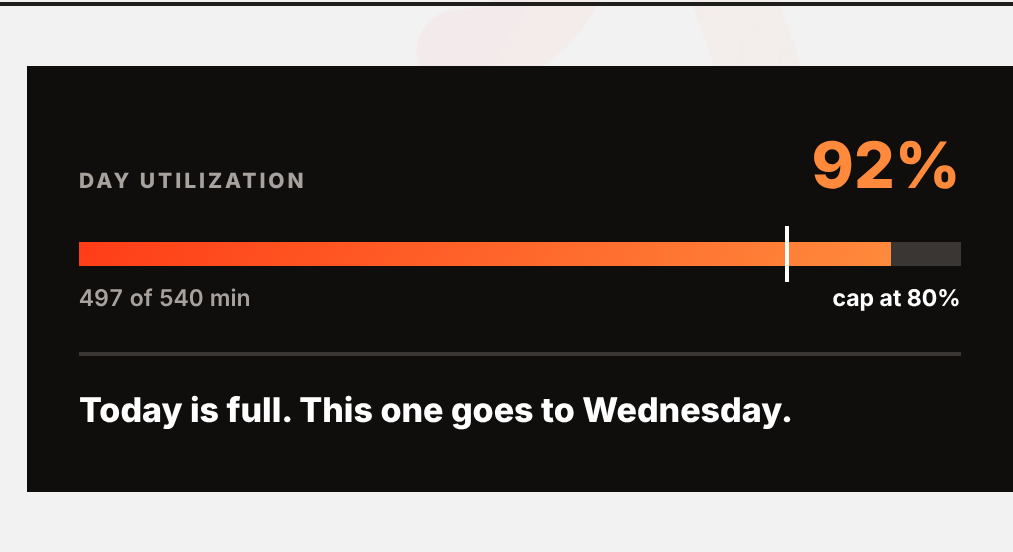
What it is: a day planner that starts from your real free time. You set your work hours, connect Google or Outlook (read-only), and your meetings land on the day first. Then you add tasks with a time estimate. Cupkey places each one into an open gap and stops at 80% of your free time. You can move the cap, but the default leaves room for the surprise call at 3pm.
Best for: salaried professionals who write a to-do list every morning and end most days with half of it left.
Key features
- Calendar pre-fill from Google or Outlook, so you plan around meetings you already have
- Tasks with a time cost, placed into the first gap that fits
- The 80% cap: past the line, Cupkey says the day is full and moves the task to tomorrow
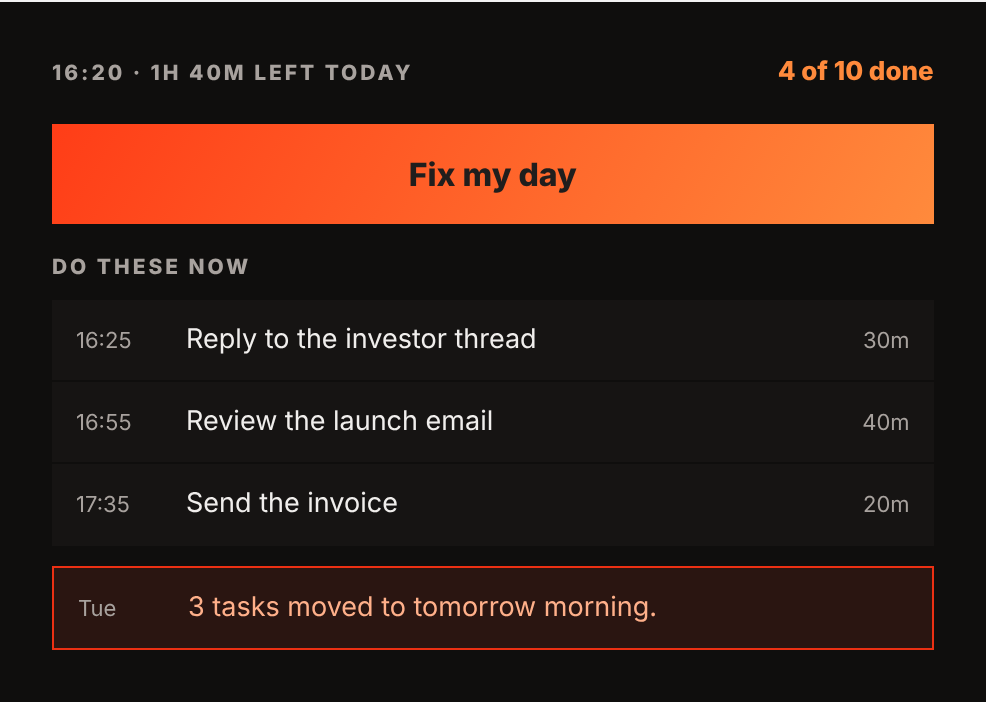
- Fix my day: when time runs short, it shows what you can still finish and moves the rest
- A start-and-stop timer with estimate vs actual, plus a weekly timesheet
- Homer and Spotlight (AI): appraisal summaries and LinkedIn or X posts written from finished tasks
Pricing (from cupkey.io/pricing, October 29, 2026): Free forever with the full planner, calendar sync, the cap, the timer and an in-app timesheet, plus 5 AI credits one time. Pro is $10 a month with 50 AI credits a month and Excel or PDF timesheet exports. An Annual welcome offer of $24.99 for the first year is open to the first 25 people.
- The only app here that refuses to overfill your day by default
- Free plan covers the whole planner, not a trial
- Fix my day handles the 4pm crunch for you
- New, so no third-party reviews and a shorter track record
- Calendar support is Google and Outlook only
- Built for individuals; no team plan on the public pricing page yet
The capacity angle: every other app on this list lets you drop a ninth hour into an eight-hour day. Cupkey treats your day as a fixed size. If you have tried time blocking and quit because the plan fell apart, try it with a cap. See how the planner works.
2. Sunsama: best guided daily planning ritual
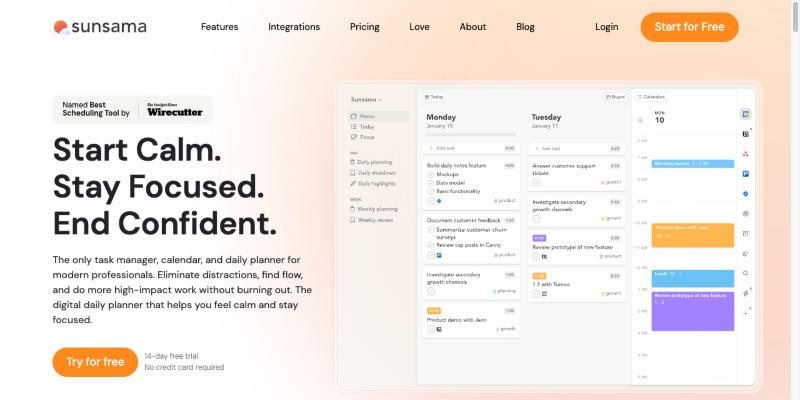
What it is: a daily planner built around a short morning ritual. You pull tasks in from your tools, choose what to do today, and drag them onto your calendar. Sunsama talks about “setting a realistic workload,” and it ends the day with a shutdown routine.
Best for: people who want a calm, repeatable planning habit and don’t mind paying for it.
Key features: guided daily planning, timeboxing on your calendar, a unified task list from integrations, a daily shutdown and a weekly review.
Pricing (sunsama.com/pricing, October 29, 2026): no free plan, a 14-day trial with no card. The plan card shows $22 a month, or $17 a month billed yearly. The same page’s FAQ still says $25 and $20, so confirm at checkout.
Rating: 4.7/5 from 27 reviews on Capterra. One reviewer wrote: “Sunsama has a workflow that works very well for me.” (Kim M., founder)
Pros: the ritual nudges you toward a realistic day; strong Google and Outlook calendar sync; easy to learn. Cons: no free plan and one of the pricier options; reviewers say the mobile app trails the desktop one. See how Cupkey compares to Sunsama.
3. Motion: best hands-off AI scheduling
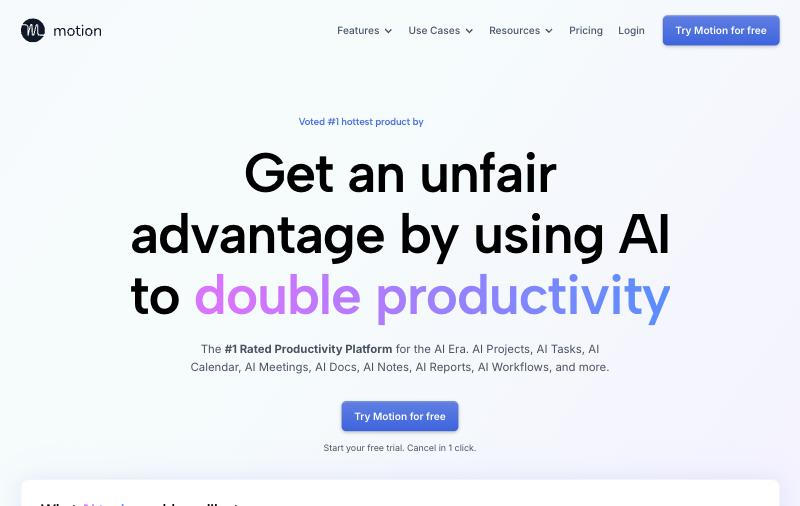
What it is: an AI work app that places your tasks on the calendar for you, based on deadlines and priorities, and re-plans when a meeting moves. It now also covers projects, docs and meetings.
Best for: people with lots of deadline-driven tasks who would rather let software build the schedule.
Key features: automatic scheduling and re-scheduling, priority and dependency rules, merged work and personal calendars, booking pages.
Pricing (usemotion.com/pricing, October 29, 2026): Pro AI is $19 per seat a month and Business AI is $29. The page offers a “Save 33%” yearly toggle but didn’t show the yearly figure when we checked. No free plan.
Rating: 4.1/5 from 157 reviews on G2, 4.3/5 from 89 on Capterra. A Capterra reviewer: “Easy to begin using and very effective in calendaring/task management.” (Joe L., legal services)
Pros: it re-plans for you when the day shifts; one place for calendars and tasks. Cons: G2 reviewers mention a steep learning curve and the price; some find auto-scheduling rigid. Motion will also fill your whole day if you let it, so set your own limits. Cupkey vs Motion.
4. Akiflow: best for pulling tasks from many tools
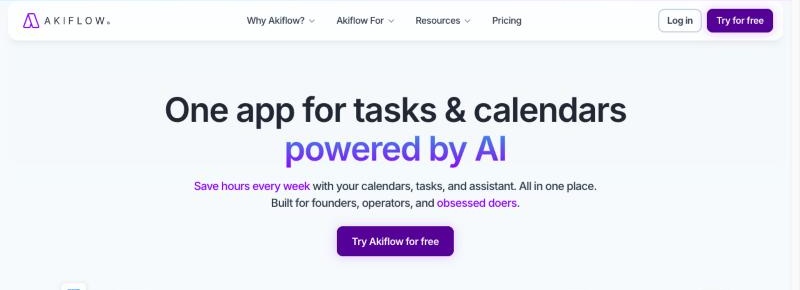
What it is: a task inbox plus calendar. Akiflow collects tasks from email, Slack and other tools into one list, and you drag them into time blocks.
Best for: people whose tasks arrive from five different apps.
Key features: a universal inbox, automatic time blocking, smart time slots, daily rituals, two-way calendar sync.
Pricing (akiflow.com/pricing, October 29, 2026): no free plan, a 7-day trial that asks for a card. Pro is $34 a month, or $19 a month billed yearly ($228). An AI meeting assistant costs $19 a month extra.
Rating: 4.8/5 from 99 reviews on G2, 4.7/5 from 106 on Capterra. A Capterra reviewer: “Akiflow is my second brain in-terms of managing my time.” (Austin M., self-employed)
Pros: fast capture from everywhere; reviewers praise ease of use and support. Cons: expensive month to month; some integrations, Notion among them, are limited. Cupkey vs Akiflow.
5. Reclaim: best free plan for protecting focus time
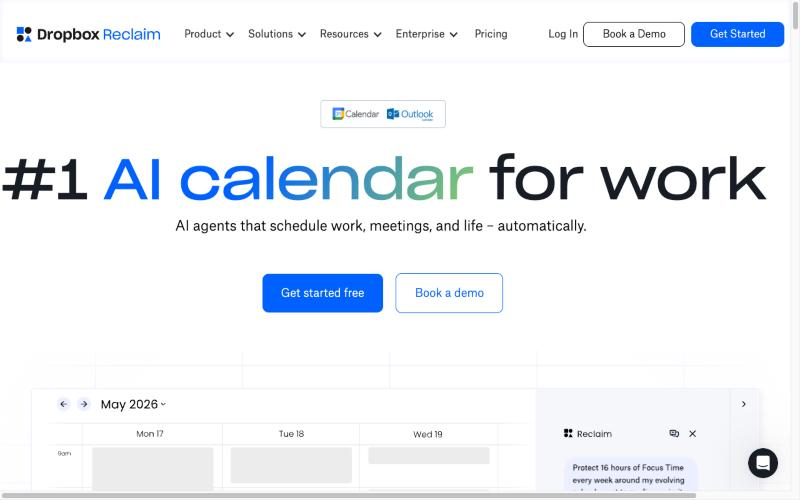
What it is: an AI calendar assistant, now part of Dropbox, that defends blocks of focus time, schedules habits into open slots and moves them when meetings land.
Best for: people on a crowded Google or Outlook calendar who need protected focus hours.
Key features: focus time, flexible habits, task scheduling by priority, buffer time, smart meetings.
Pricing (reclaim.ai/pricing, October 29, 2026): a free Lite plan for one user with a one-week scheduling range. Starter is $10 per seat a month billed yearly ($12 monthly). Business is $15 yearly ($18 monthly). Enterprise is $22 yearly.
Rating: 4.8/5 from 144 reviews on G2. A G2 reviewer: “Reclaim quietly reshuffles things and reminds me to actually focus.” (Douglas B.)
Pros: generous free tier; schedules breaks and personal time on its own. Cons: lighter on task management; reviewers mention the lack of a dedicated mobile app.
6. Morgen: best for juggling several calendars

What it is: a calendar and daily planner that merges Google, Outlook, Apple and Fastmail calendars, pulls in tasks from other tools, and suggests a plan you approve.
Best for: consultants and freelancers with more than one work calendar.
Key features: an AI planner that suggests blocks, “Frames” templates for an ideal week, automatic buffers and travel time, apps for Windows, Mac and Linux.
Pricing (morgen.so/pricing, October 29, 2026): no free plan, a 14-day trial with no card. Individual is $30 a month, or $15 a month billed yearly.
Rating: 4.8/5 from 30 reviews on G2. A Capterra reviewer called it “integrations galore, super intuitive interface.” (Przemek S., CEO)
Pros: the best multi-calendar support here; suggestions instead of forced scheduling. Cons: $30 month to month is steep; fewer public reviews than most.
7. TickTick: best budget all-in-one
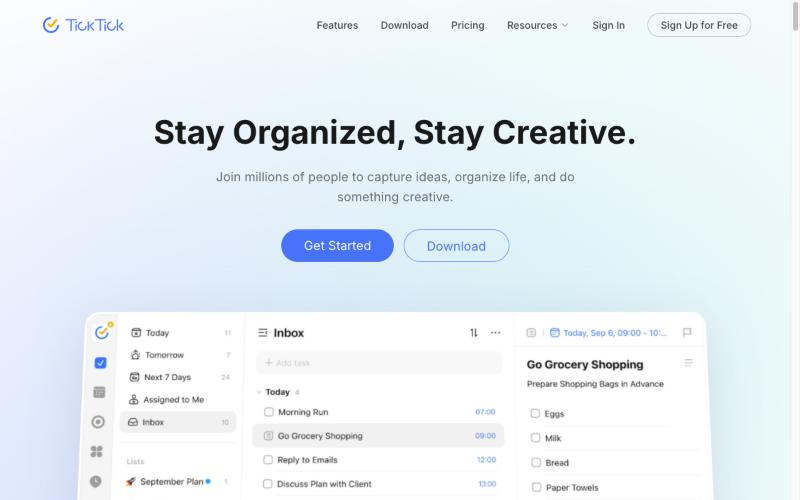
What it is: a to-do list with a calendar, a Pomodoro timer and a habit tracker built in. You drag tasks onto the day or week view to block them.
Best for: anyone who wants tasks, calendar and focus timer in one cheap app.
Key features: day, week and multi-week calendar views, a timeline view, a Pomodoro timer, habits, natural language dates.
Pricing (ticktick.com/upgrade, October 29, 2026): free plan with 9 lists and 99 tasks per list and a basic calendar view. Premium is $49.99 a year and adds multiple calendar views and task duration.
Rating: 4.5/5 from 114 reviews on G2, 4.7/5 from 129 on Capterra.
Pros: the cheapest paid plan here; useful free tier; apps on every platform. Cons: task duration, which you need for real time blocking, sits behind Premium; no warning when the day is overbooked.
8. Structured: best visual timeline on iPhone
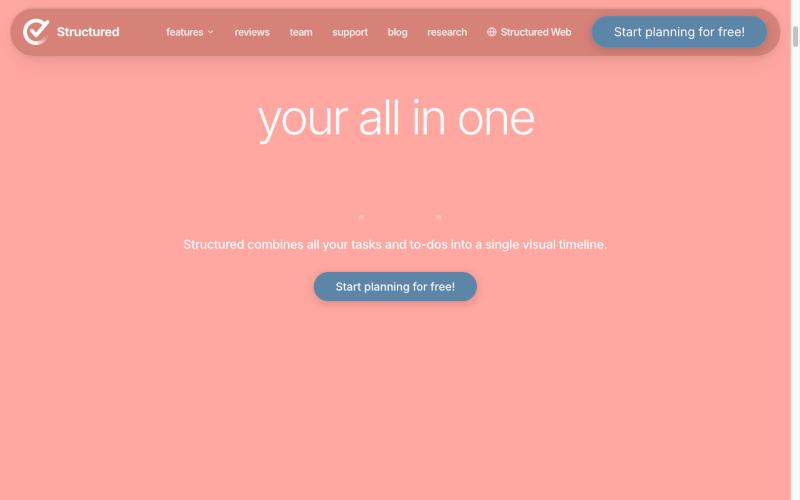
What it is: a visual day planner that shows your tasks as a single timeline, popular on iPhone, iPad, Apple Watch and Mac, with a web version.
Best for: people who think in pictures and plan on their phone.
Key features: a drag-and-drop timeline, an inbox, a focus timer, and on Pro: calendar import, recurring tasks and AI planning.
Pricing: a free plan with most features (Structured help center). Structured says prices vary by region. The US App Store lists Pro options from $2.99 a month and a $99.99 lifetime purchase (October 29, 2026).
Rating: 4.9/5 from 73 reviews on G2, and 4.8 on the US App Store.
Pros: very easy to read at a glance; strong free tier. Cons: calendar import and recurring tasks need Pro; pricing is confusing across regions.
9. Todoist: best if you want a to-do list first
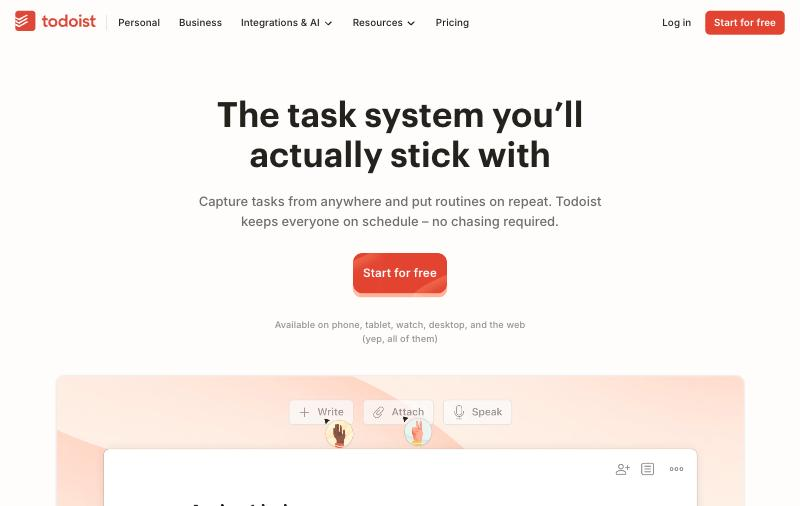
What it is: one of the most popular to-do lists, now with a day and week calendar where you drag tasks into slots. You can also type “tomorrow at 10am for 25 minutes” and it books the block.
Best for: people who already live in Todoist and want light time blocking on top.
Pricing (todoist.com/pricing, October 29, 2026): the free Beginner plan has 5 projects but no calendar layout and no task duration. Pro is $5 a month billed yearly ($60) or $7 monthly.
Rating: 4.5/5 from 835 reviews on G2, 4.6/5 from 2,664 on Capterra.
Pros: the fastest task capture here; more than 90 integrations. Cons: calendar blocking needs Pro; no total of planned time per day, so overbooking is easy.
10. Google Calendar: best free manual option
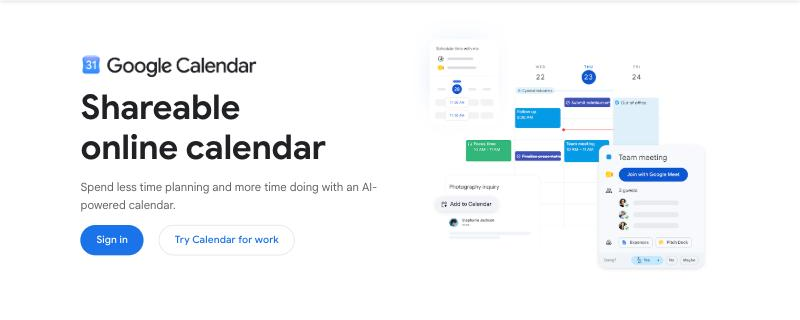
What it is: the calendar you already have. Drag out a block, name it after the task, color-code it.
Best for: trying time blocking for a week before paying for anything.
Pricing: free with a personal Google account. Focus time events, which auto-decline meetings, need a work or school Workspace account (Google help).
Rating: 4.8/5 from 4,340 reviews on Capterra.
Pros: free and everywhere; every tool on this list connects to it. Cons: no task list or durations; it never tells you that you have booked eleven hours into a nine-hour day.
How do you choose a time blocking app?
Ask four questions, in this order.
Does it know how much free time you have?
Start with your work hours minus meetings and breaks. An app that shows that number, and stops when you reach it, saves you from the most common failure. Cupkey does this by default. In Sunsama you do it by hand during the morning ritual. In most others you have to add up the blocks yourself.
Do you want to place blocks, or have AI place them?
If you enjoy arranging your day, Sunsama, TickTick, Structured or Google Calendar keep you in charge. If you’d rather hand it off, Motion and Reclaim schedule for you. Morgen sits between the two: it suggests, you approve.
Where do your tasks come from?
If tasks arrive by email, Slack and three project tools, Akiflow’s inbox pays for itself. If they come from your own head each morning, a simpler app works.
What happens at 4pm when you’re behind?
Every plan breaks sometimes. Check how the app helps you recover: Motion re-plans on its own, Cupkey’s Fix my day shows what still fits and moves the rest, and Google Calendar leaves you dragging blocks to tomorrow one at a time.
Frequently asked questions
What is the best free time blocking app?
Google Calendar is the simplest free option. For a free plan with tasks built in, TickTick, Structured, Reclaim Lite and Cupkey all have free tiers. Cupkey’s free plan includes the 80% cap and calendar sync.
Is time blocking worth it?
Planning when and where you will do a task makes you more likely to do it, according to a meta-analysis of 94 studies. It stops working when you block more hours than you have, so plan against your real free time.
How much of my day should I time block?
Leave slack. We suggest blocking about 80% of your free time, after meetings and breaks, and keeping the rest for overruns and urgent requests.
Can I time block in Todoist or TickTick for free?
Not fully. Todoist’s calendar layout and task duration need Pro. TickTick’s free plan has a basic calendar view, while task duration needs Premium.
What happened to Clockwise?
Clockwise shut down on March 27, 2026, and recommended Reclaim to its users.
Last checked October 29, 2026. Prices and ratings change. If you spot something out of date, email hello@cupkey.io and we’ll fix it.